the problem
You changed three things.
Only one belongs in this commit.
A debug console.log, a real fix, and an unrelated formatting pass — all in the same file, because that's how editing actually happens. Most git clients make you choose: commit the whole file, or split it into a separate branch first. Cairn lets you just select the lines that belong, and stage exactly those.
click, drag, stage
Line-level staging, for real
Drag across the added or removed lines you want, click Stage Selected Lines, and Cairn builds the exact patch — down to the individual line — and applies it to the index. Unselected lines stay right where they were.
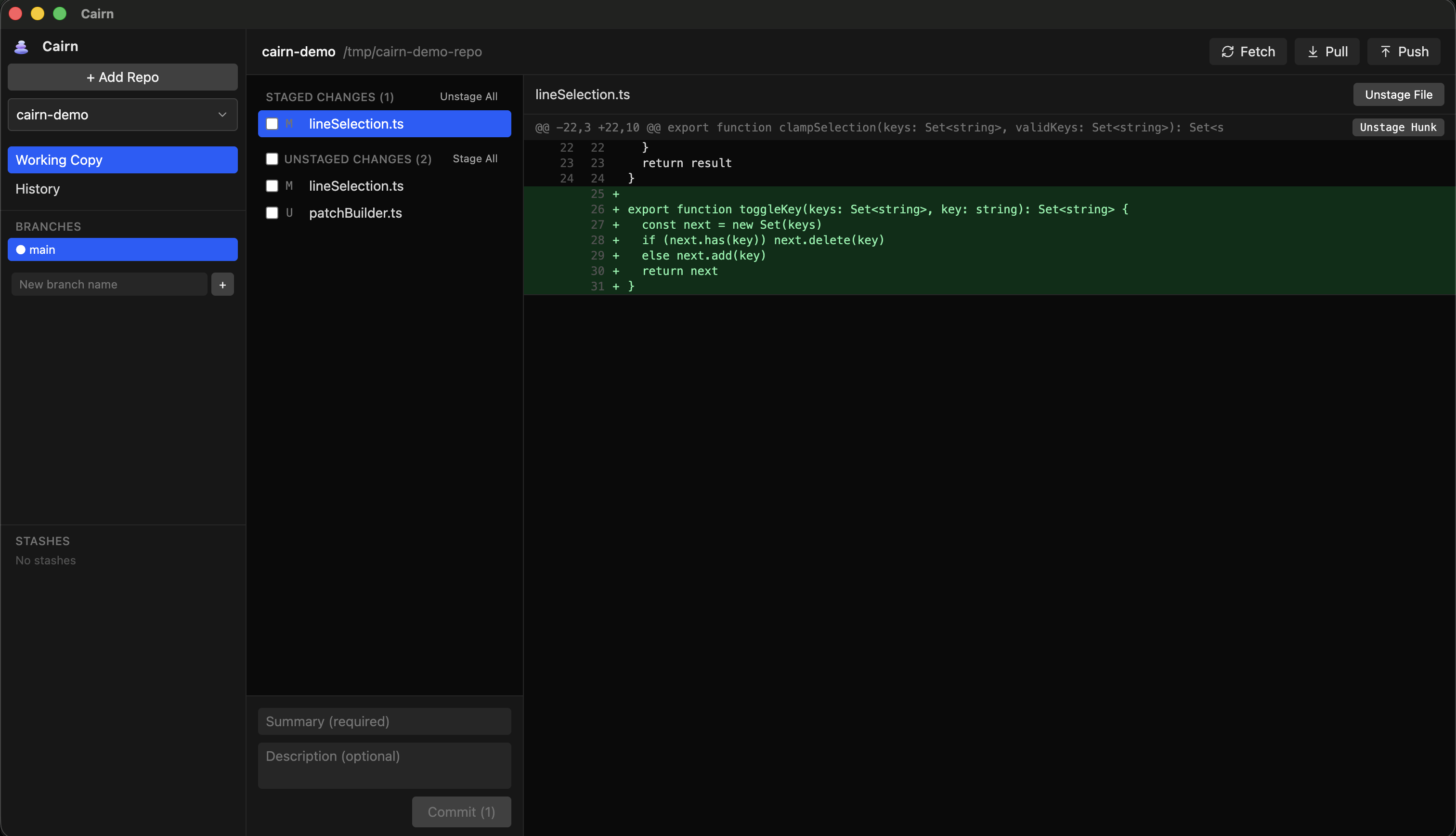
The Working Copy view — staged and unstaged changes to the same file, side by side.
everything else you'd expect
The rest of a Git client, done properly
Line-level staging is the headline, but Cairn is a complete daily driver too.
Multi-repo
Add any number of local repositories and switch between them instantly.
Whole-file & hunk staging
Line-level staging when you need precision, one-click staging when you don't.
Multi-file selection
Check any subset of files to bulk stage, unstage, or stash them together.
Branches
List, create, rename, delete, and merge — checkout blocked with a clear message if your tree is dirty.
Stash
Shelve work-in-progress changes and bring them back later — no throwaway commits.
History
Full commit log with a read-only diff, plus one-click revert for any commit.
Plus the essentials, and a few safety details:
the summit